
Integration · 9 min read
MIDI Show Control for Stage Lighting — MSC & MIDI Notes Explained
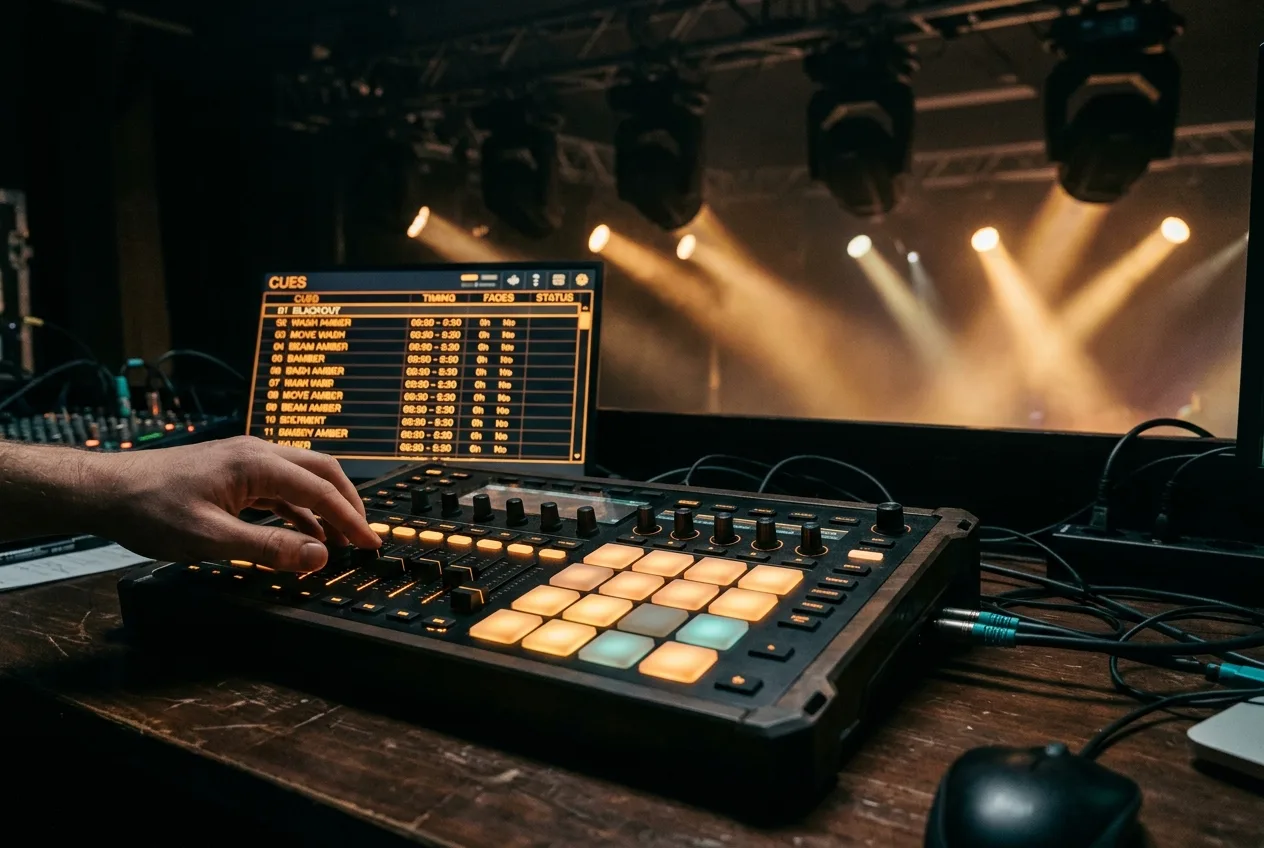
MIDI Show Control (MSC) is a standard that lets one system — usually the sound or media playback rig — send GO, STOP and cue-number commands to another, most often the lighting console. DMXpressions™ listens for MSC and raw MIDI notes over Web MIDI, so a QLab machine or a hardware MIDI controller can trigger cues, chases and effects with sample-accurate timing.
Why MIDI belongs in a lighting rig
Concerts, theatre shows and immersive experiences almost always run on more than one system: a media server plays video, an audio rig plays back tracks, a lighting console runs cues, and a follow-spot operator triggers looks by hand. If everyone is pressing GO independently, the show drifts within seconds. MIDI is the oldest and most reliable way to keep them all in sync — one operator (or one playback machine) sends a signal, and everything else advances together.
Two MIDI dialects that matter for lighting
- MIDI Show Control (MSC). A standardised, high-level protocol specifically for triggering lighting, sound and machinery. Messages carry a command type (GO, STOP, RESUME, SET, FIRE), a target device ID and a cue number. Introduced by MMA in 1991 as an extension of MIDI SysEx, MSC is what QLab, Figure 53 tools and most theatre-grade playback systems speak.
- Raw MIDI notes and CCs. A cheaper, less structured approach: bind cues or fader banks to specific note-on messages and MIDI Continuous Controllers. Great for a keyboardist triggering effects on the fly, or a MIDI foot-pedal to advance cues, but doesn't carry cue numbers or list identifiers.
How MSC messages look on the wire
Every MSC message is a MIDI SysEx frame — a variable-length payload wrapped in F0 7F ... / F7 bytes. Inside, the payload identifies the target device (each device gets its own ID from 0–111, with 127 broadcasting to everything on the wire), the command format (11 for Lighting) and the command itself. A typical GO cue 12 looks like: F0 7F 01 02 01 01 "12" 00 F7 — device 1, lighting format, GO command, cue "12".
You almost never build these by hand — the sending software (QLab, Ableton, an MSC-capable playback machine) handles the encoding. On the receiving side, DMXpressions™ parses the incoming SysEx and advances the matching cue in the matching cue list.
How raw MIDI notes work in DMXpressions™
Open the Media & Sync panel and pick MIDI. When your browser grants access via the Web MIDI API, DMXpressions™ lists every attached MIDI device — hardware controllers, virtual ports, an IAC bus on macOS or loopMIDI on Windows. Bind any cue, chase or effect to a specific note, and pressing that key (or programming a step in a DAW's piano roll) fires the cue with sub-millisecond latency.
How to wire QLab or a DAW to DMXpressions™
- Create a virtual MIDI bus. On macOS use the built-in IAC Driver; on Windows install loopMIDI. Give the port a memorable name like
show-control. - Send from your playback machine. In QLab add an MSC cue set to the shared bus. In a DAW like Ableton or Reaper, route a MIDI track's output to the bus.
- Receive in DMXpressions™. In Media & Sync → MIDI, subscribe to the same bus. Any MSC GO now fires the mapped cue; any note-on triggers whatever you bind to it.
- Add SMPTE if you need frame-accurate lock. For long-form productions, MIDI Time Code (MTC) or SMPTE via Art-Net Timecode locks the console's timeline to a master clock — see the show-programming guide for how cue lists use timecode.
Common pitfalls
- Two devices with the same MSC ID. Only one console will fire per command. Give every receiving device a unique ID or broadcast to 127 knowingly.
- Wrong command format. MSC has separate formats for Lighting, Sound, Machinery, etc. QLab defaults to General; set it to Lighting when addressing a lighting console.
- Web MIDI permissions. The browser needs an explicit user gesture and site permission to enumerate MIDI devices. Grant it once per origin.
- USB hubs. Cheap unpowered hubs sometimes drop MIDI messages under load. Plug MIDI interfaces directly into the laptop when possible.
Related
Once MIDI is triggering cues, layer in sound-reactive effects to have the lights follow the music between GO points, and see the first-show tutorial for how cue stacks are structured.